Skip to content
English
  • There are no suggestions because the search field is empty.

Managing USA Field Hockey Registrations and Exports

00:00: This video demonstrates how to access and manage registration reports for USA Field

00:05: Hockey members. It covers filtering, editing participant details, and exporting

00:11: membership lists efficiently.

00:15: After logging into your Playbook API,

00:18: click on the reporting drop-down menu and select registrations.

00:26: From the dropd-down, select All Registrations.

00:31: Once you are on the All Registration tab, scroll down.

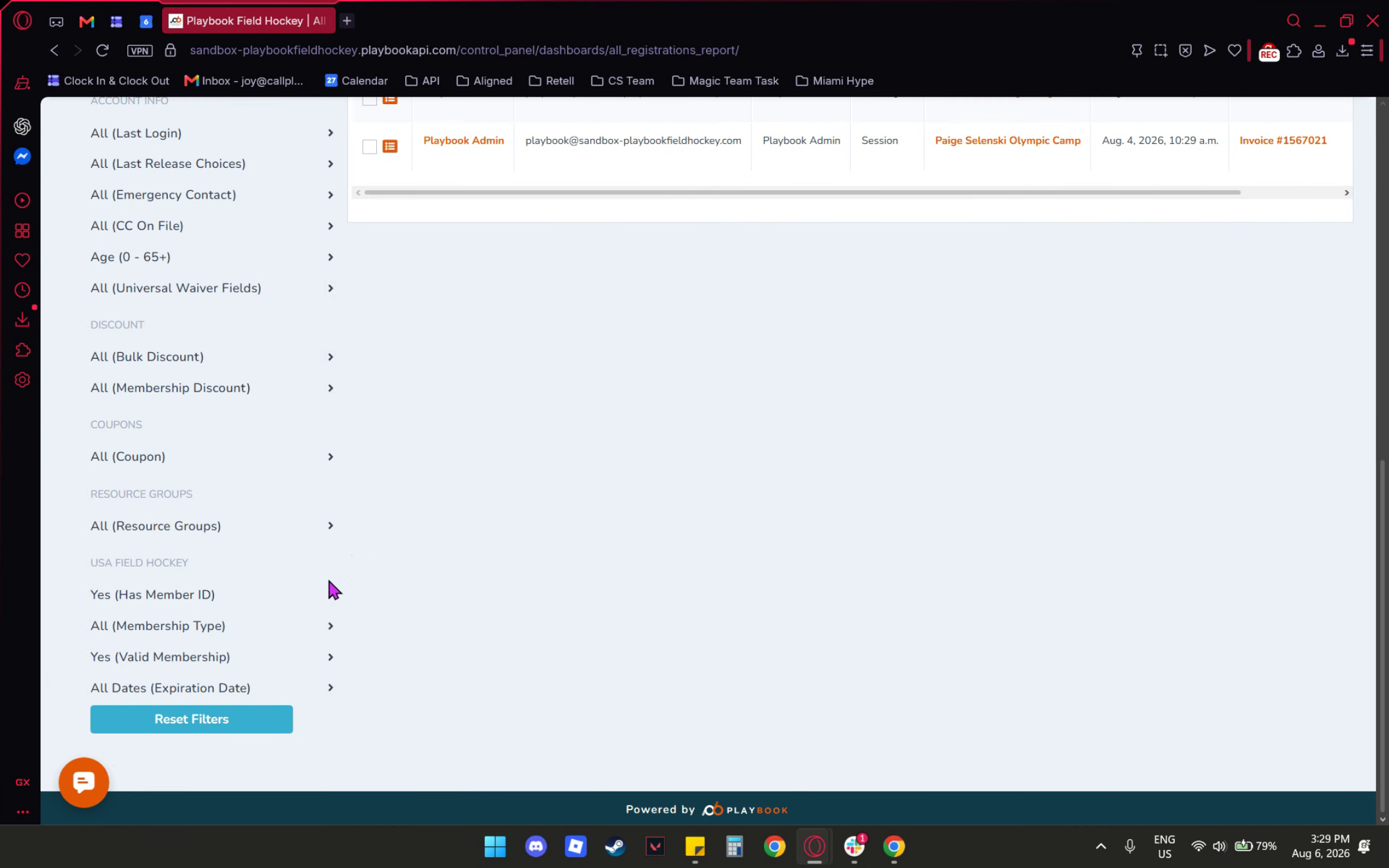
00:37: At the bottom left, you will find the USA Field Hockey filter section.

00:44: You can check for the membership ID,

00:47: membership type, valid membership status,

00:52: and expiration date.

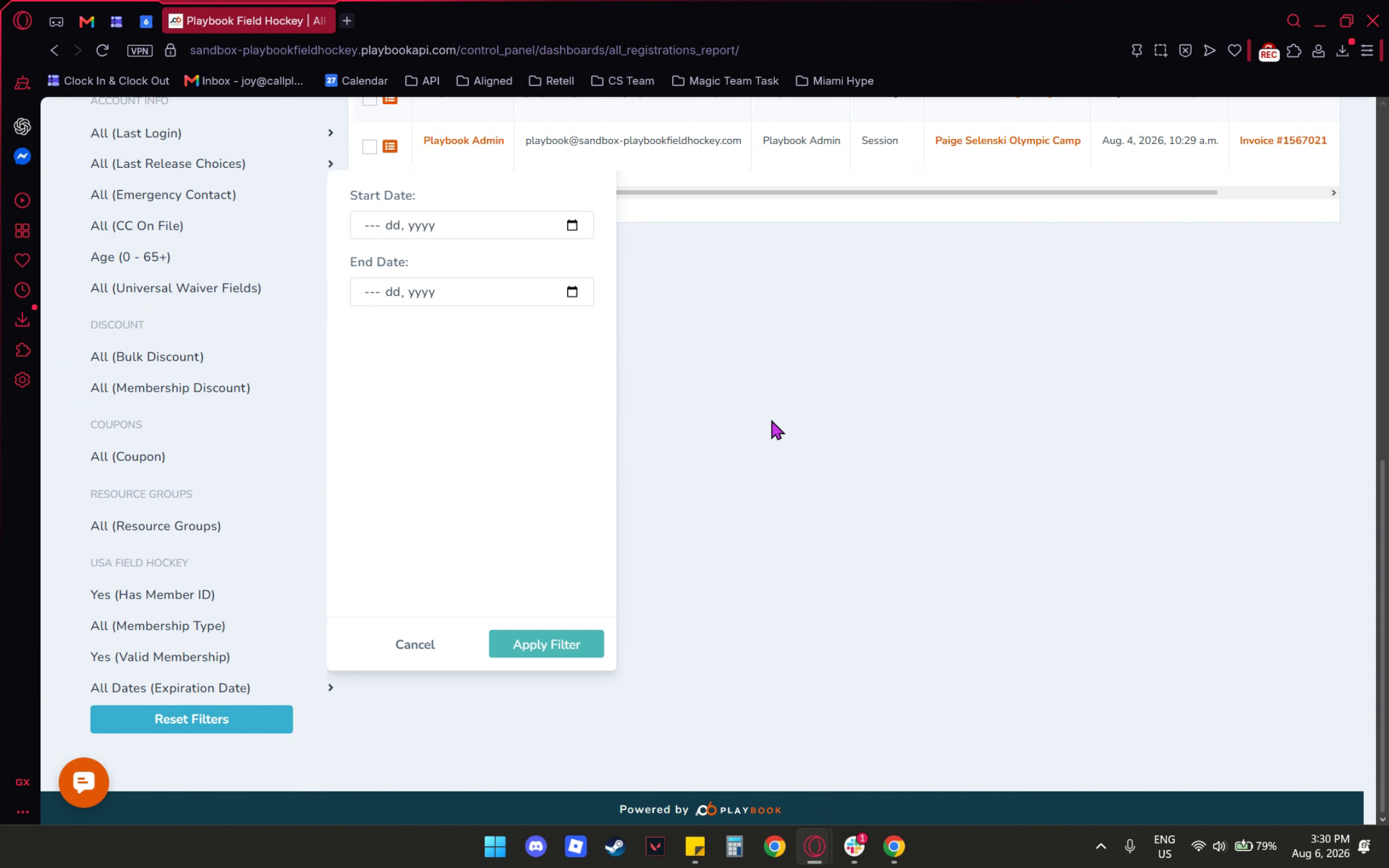
00:54: Additionally, you can set the start and end dates.

00:58: Next,

01:01: let me show you how to edit or update a participant for the USA Field

01:06: Hockey membership.

01:07: First, select the USA Field Hockey tab.

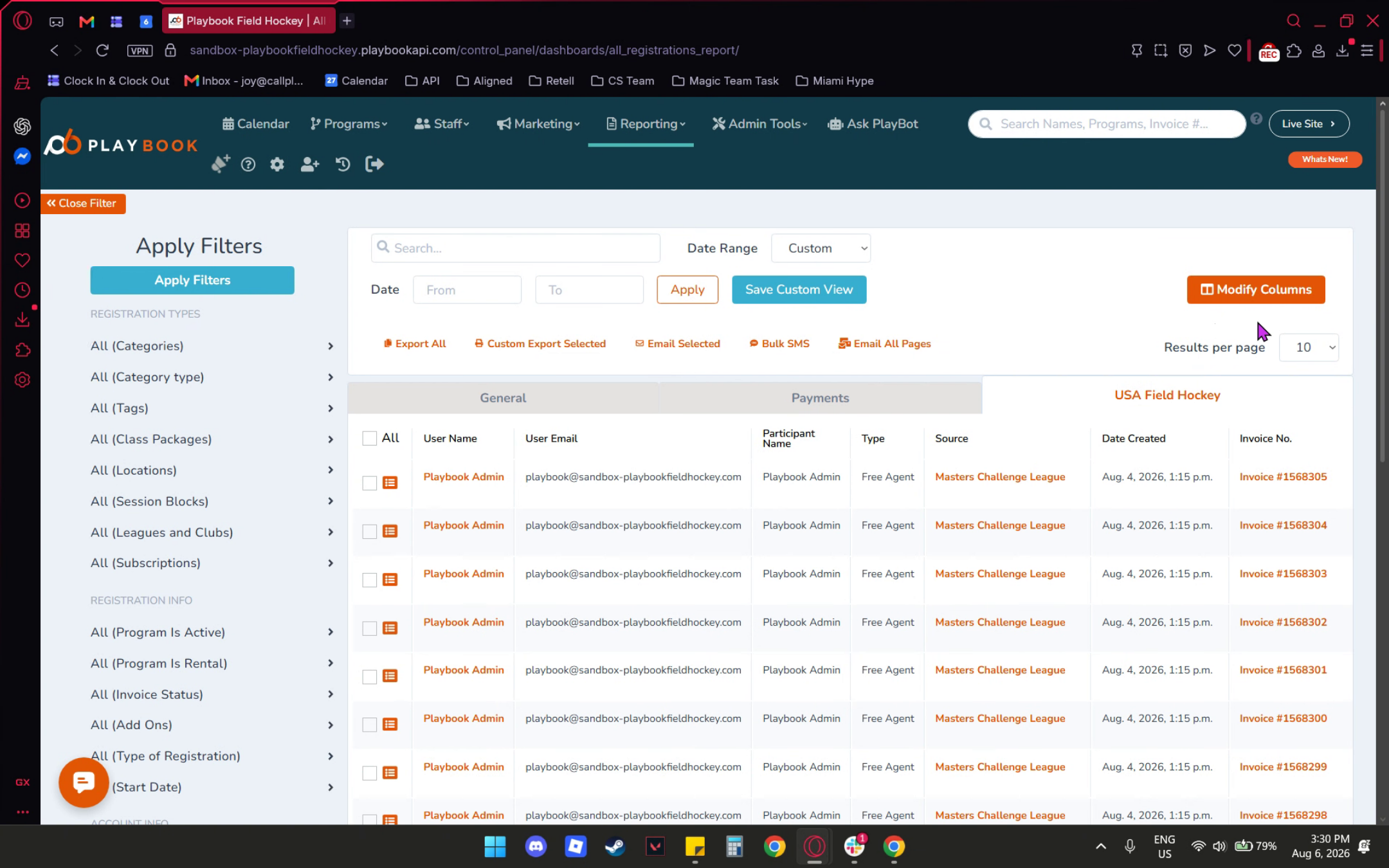
01:11: Next, click on the modify column. Here, you will find the USA Field

01:16: Hockey section. Make sure to check the box for the USA Field Hockey ID.

01:23: Finally, save the table.

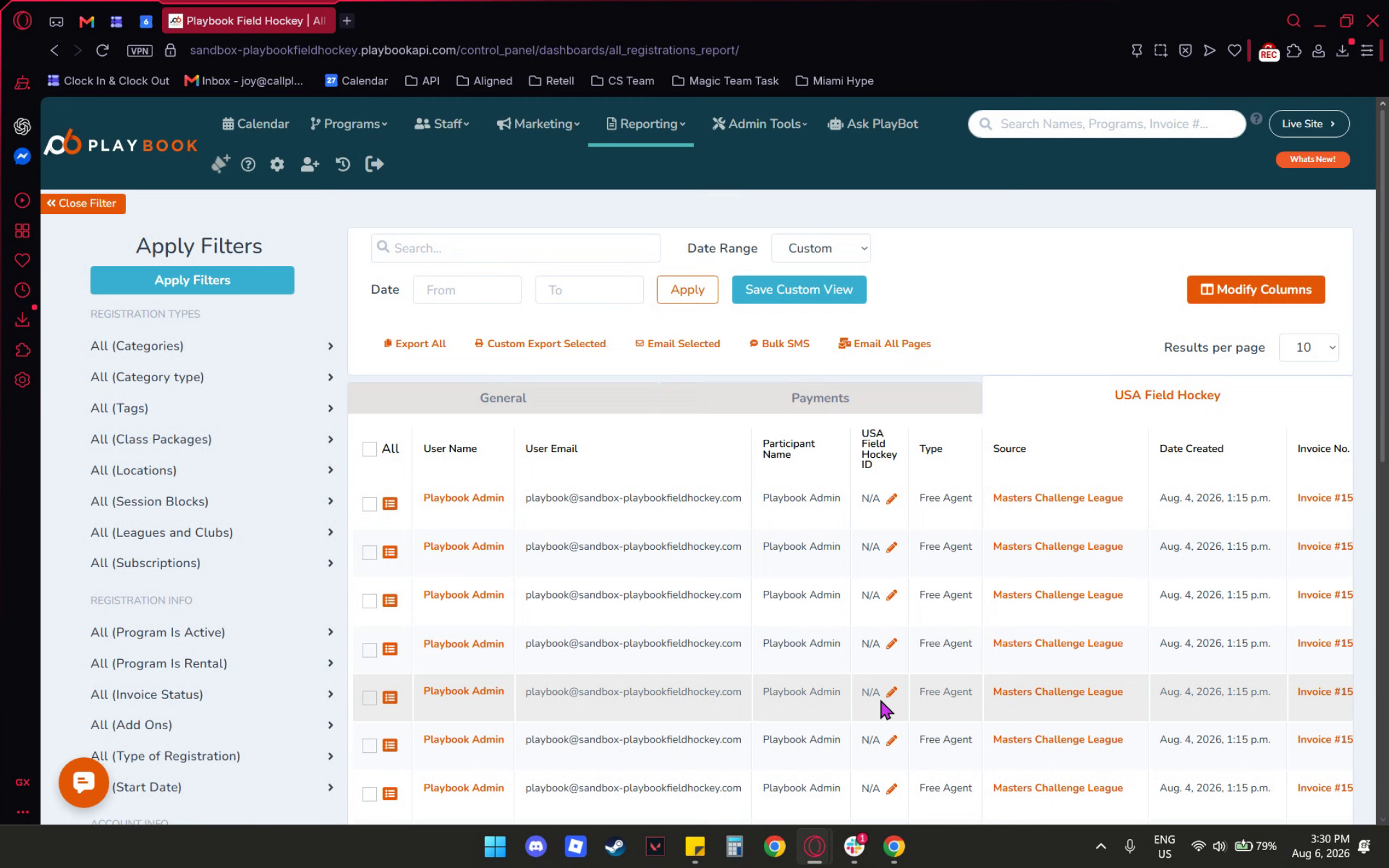
01:25: Once saved, you will see an edit icon appear here.

01:32: Click the edit icon,

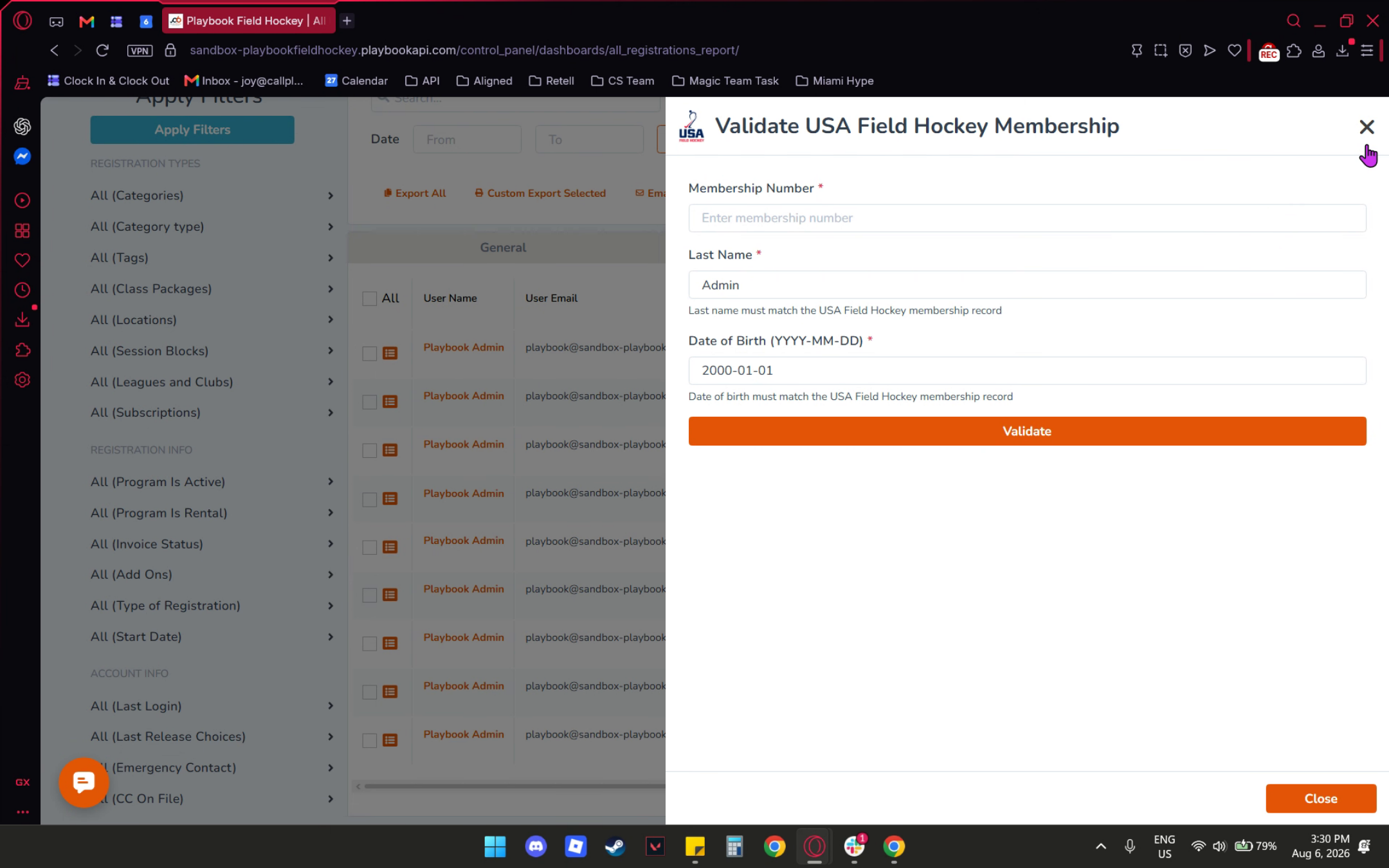
01:33: and in this section, you can modify the membership number, last name, and date of

01:39: birth.

01:40: After making your changes, click validate.

01:43: Next, I will demonstrate how to export a list file for the USA Field

01:48: Hockey members.

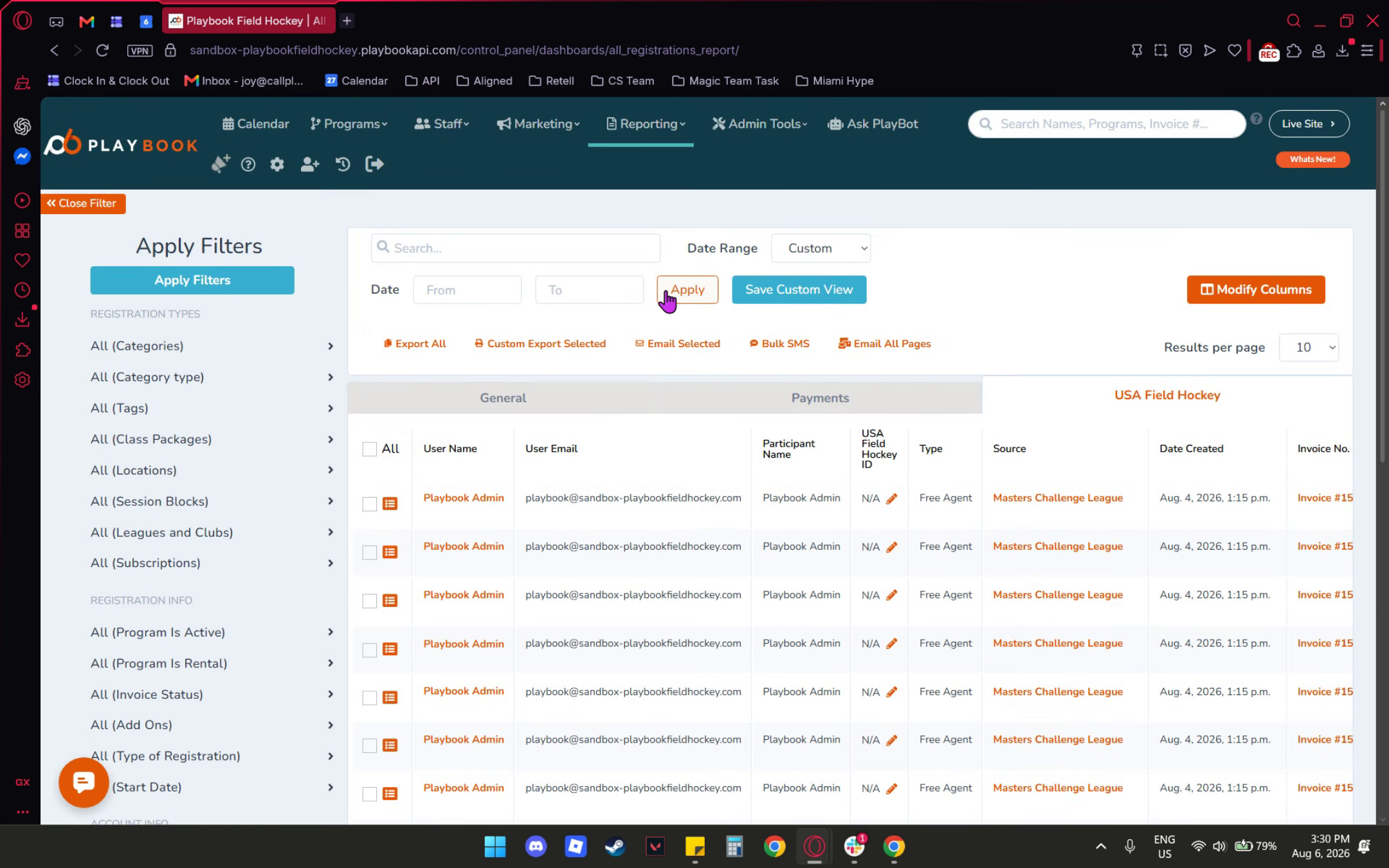
01:52: In this section, you will find the options for Export All and Custom Export

01:57: selected.

02:00: By clicking on Export All, you can export all the registrations.

02:08: For the Custom Export option,

02:10: you can select specific items and information

02:13: you want to include on the exported file.

02:16: You can also choose specific members or participants individually.

02:24: To select, check the box, and then click "Custom Export Selected."

02:29: A pop-up will appear; scroll down and click Export.

02:40: Learn to navigate registration reports, update membership information, and export

02:45: customized lists for USA Field

02:47: Hockey participants with ease.


This video demonstrates how to access and manage registration reports for USA Field Hockey members. It covers filtering, editing participant details, and exporting membership lists efficiently.

1. Accessing Registration Reports

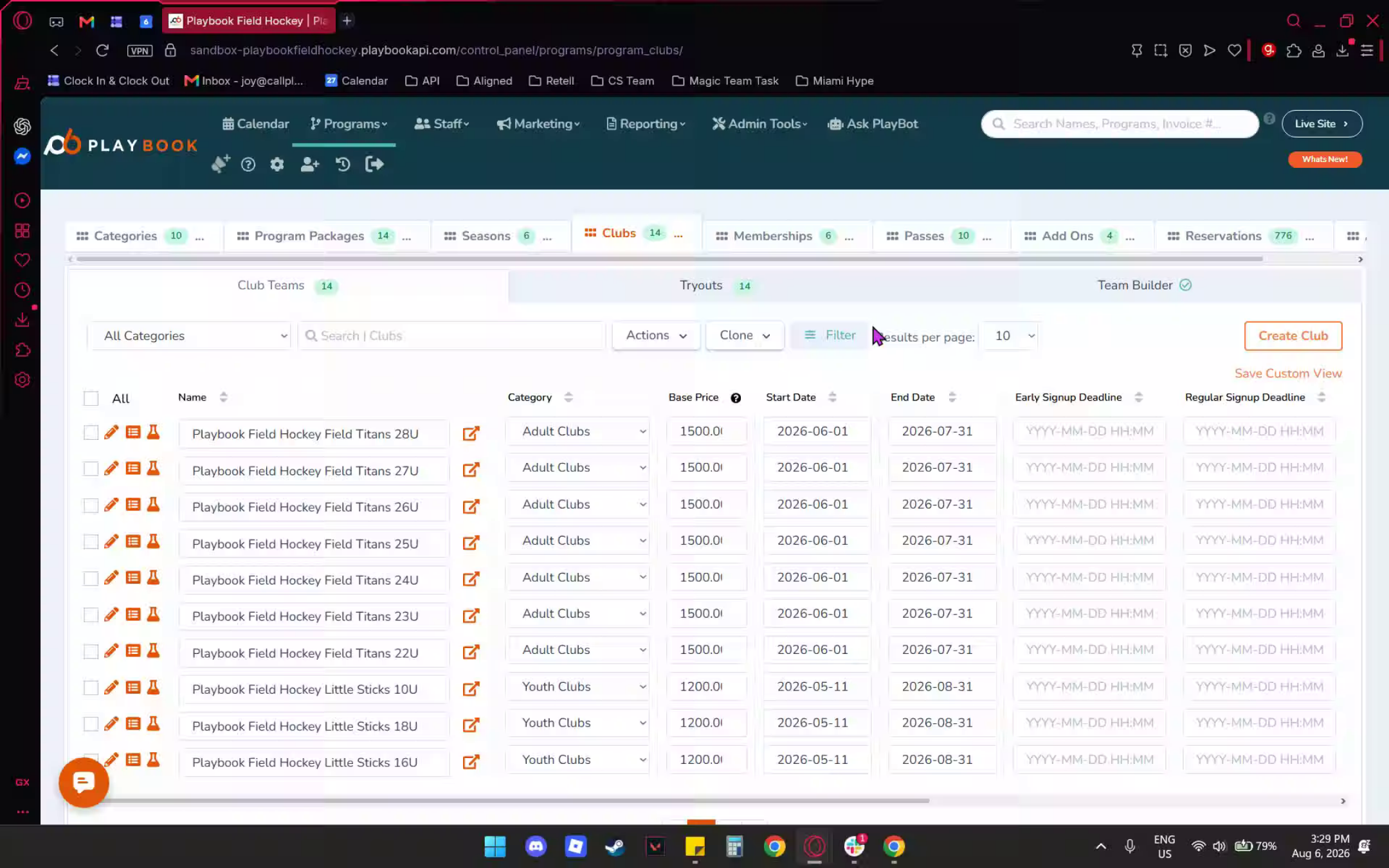
After logging into your Playbook API, click on the reporting drop-down menu and select registrations. From the dropd-down, select All Registrations.
 
 
2. Navigating Registration Tab

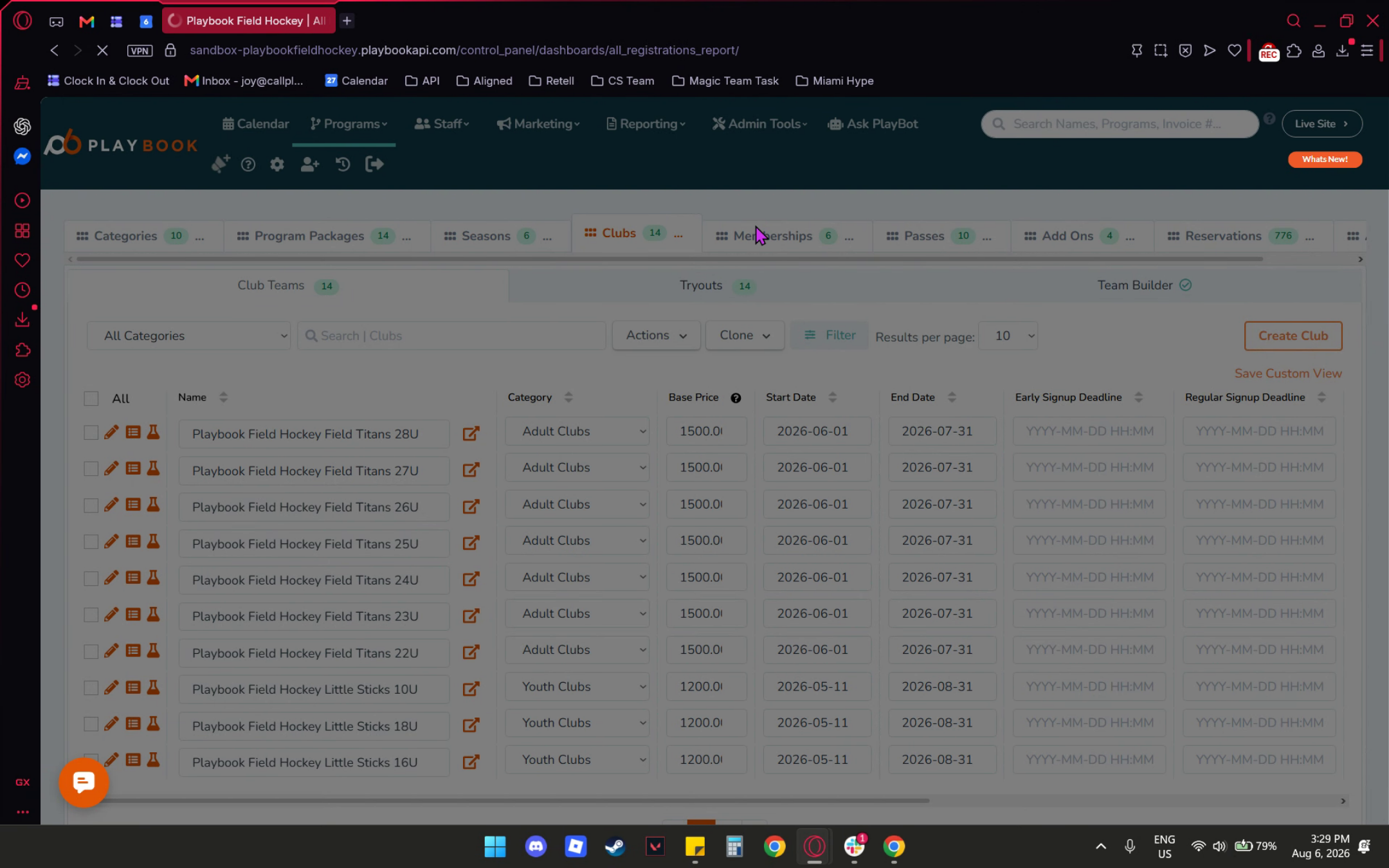
Once you are on the All Registration tab, scroll down. At the bottom left, you will find the USA Field Hockey filter section.
 
 
3. USA Field Hockey Filters Overview

You can check for the membership ID, membership type, valid membership status, and expiration date. Additionally, you can set the start and end dates.
 
 
4. Editing Participant Membership

Next, let me show you how to edit or update a participant for the USA Field Hockey membership. First, select the USA Field Hockey tab.
 
 
5. Modifying USA Field Hockey ID

Next, click on the modify column. Here, you will find the USA Field Hockey section. Make sure to check the box for the USA Field Hockey ID. Finally, save the table.
 
 
6. Editing Membership Details

Once saved, you will see an edit icon appear here. Click the edit icon, and in this section, you can modify the membership number, last name, and date of birth. After making your changes, click validate.
 
 
7. Exporting USA Field Hockey List

Next, I will demonstrate how to export a list file for the USA Field Hockey members.
 
 
8. Export Options Explained

In this section, you will find the options for Export All and Custom Export selected. By clicking on Export All, you can export all the registrations. For the Custom Export option, you can select specific items and information you want to include on the exported file. You can also choose specific members or participants individually.
 
 
9. Custom Export Selection And Exporting

To select, check the box, and then click "Custom Export Selected." A pop-up will appear; scroll down and click Export.
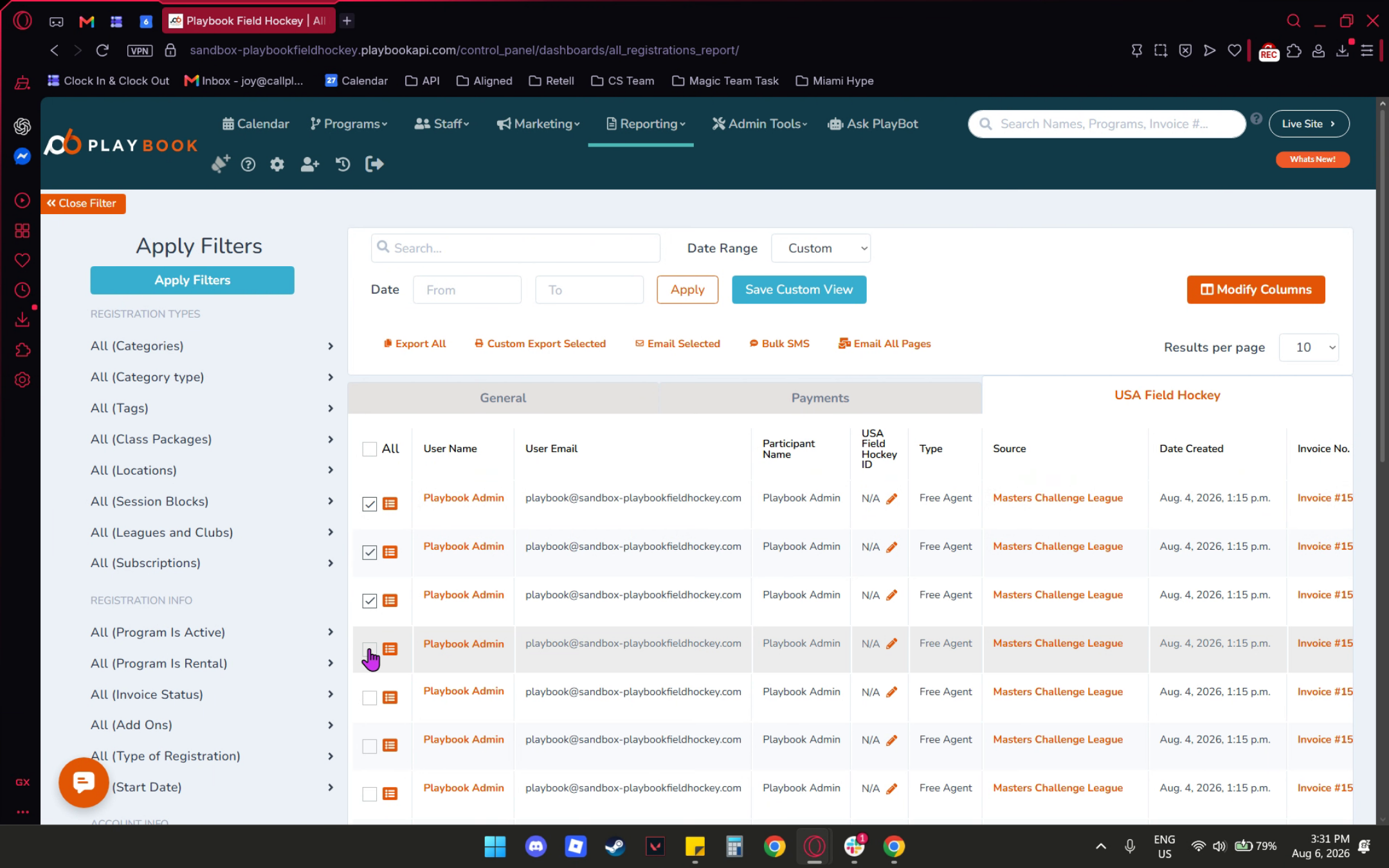


Learn to navigate registration reports, update membership information, and export customized lists for USA Field Hockey participants with ease.