
This video demonstrates how to set up and manage USA Field Hockey membership validation within your site settings. It covers enabling membership requirements, configuring program packages, and ensuring proper registration verification.
1. Accessing Site Settings
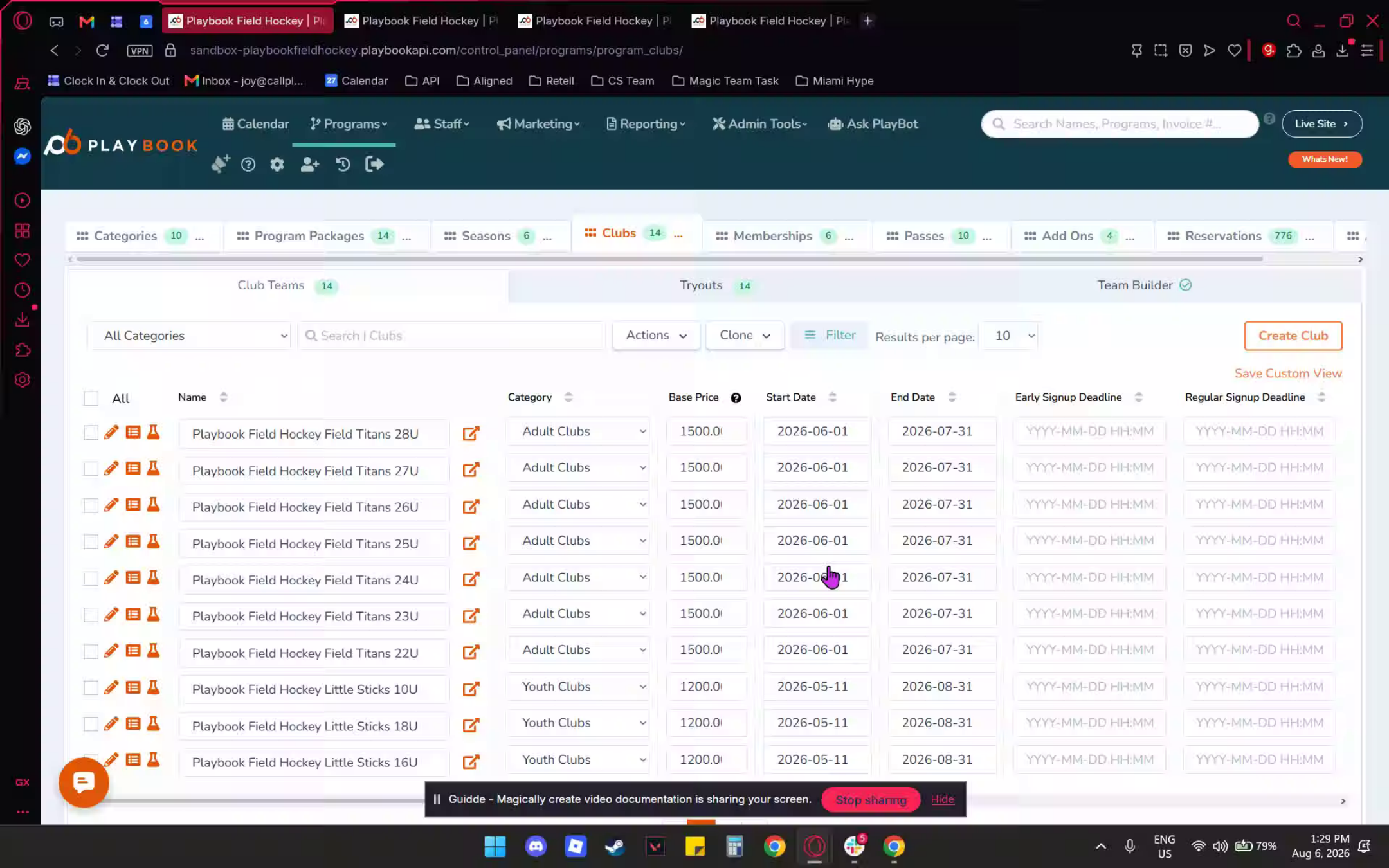
After logging into your Playbook API account, find the gear icon or site settings. Click the icon to access your Site Settings.
2. Selecting USA Field Hockey Option
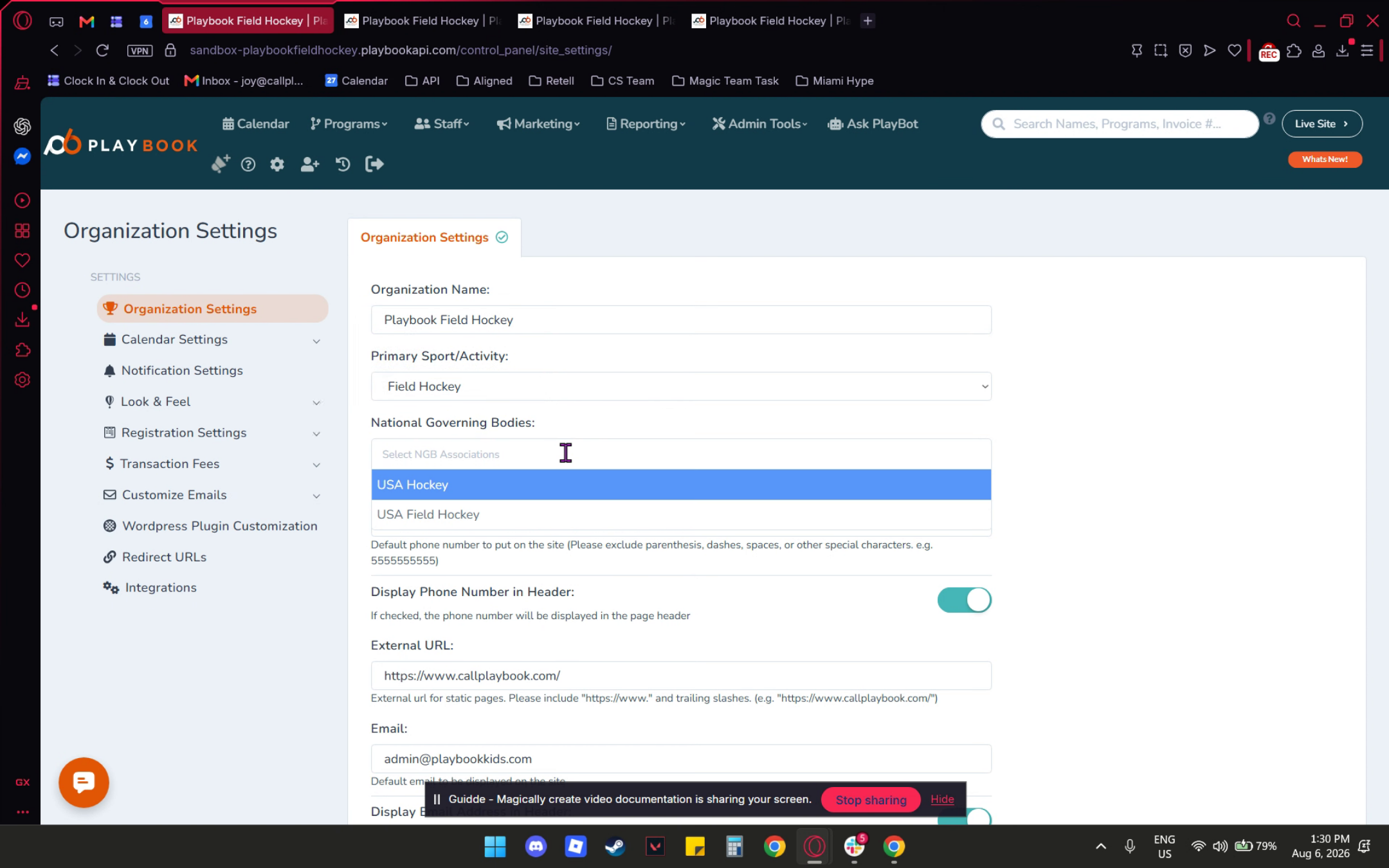
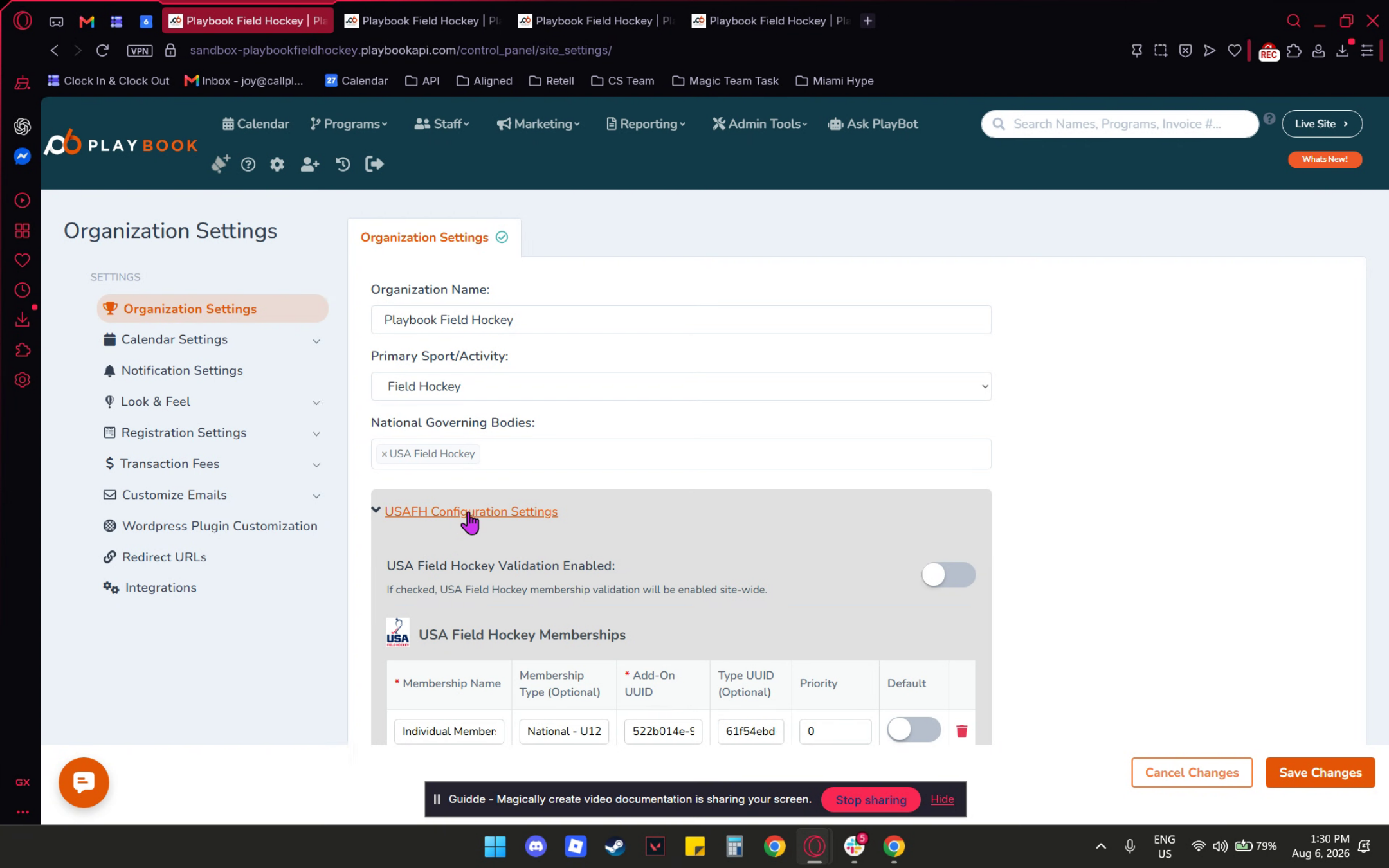
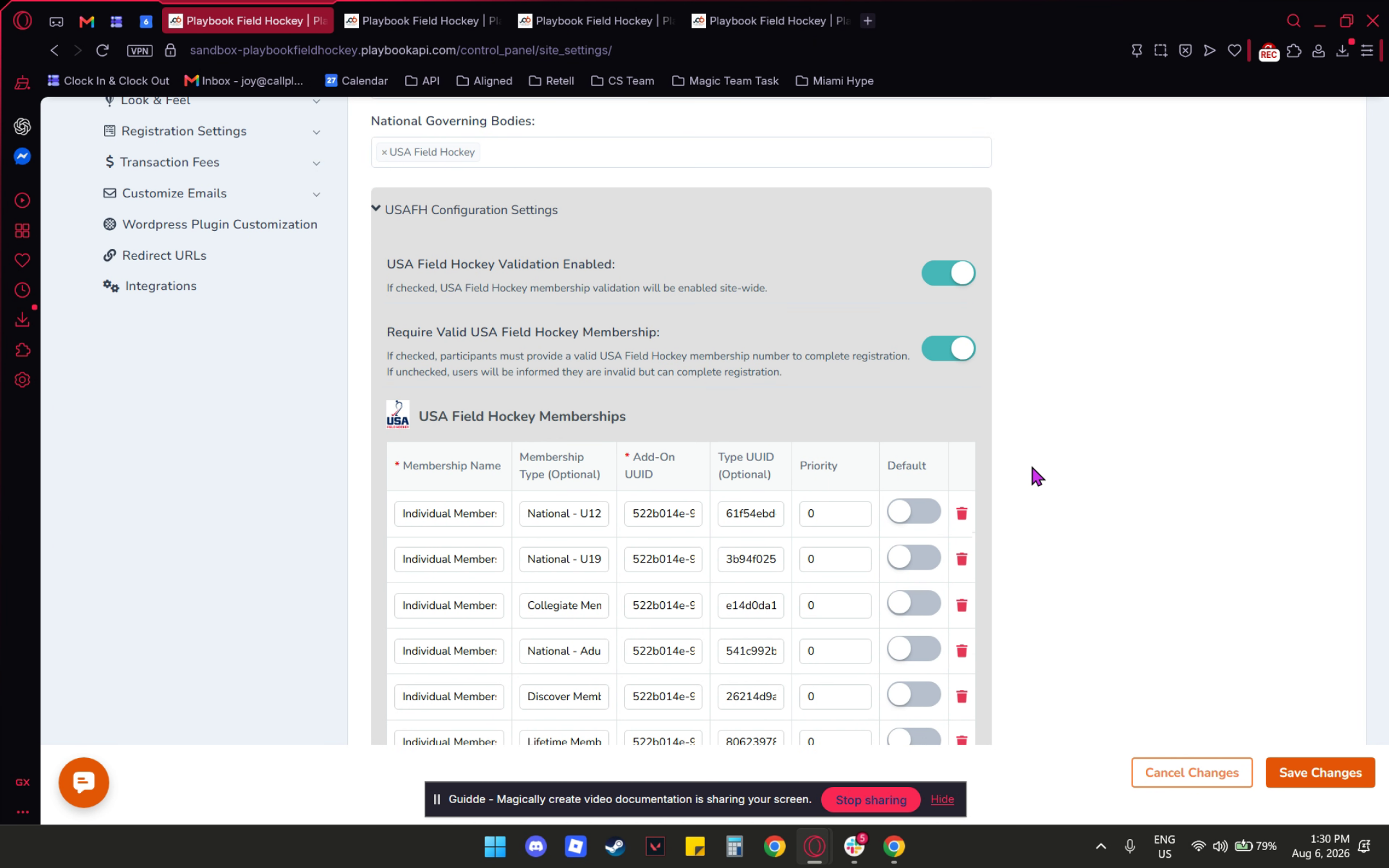
From there, navigate to national governing bodies. You will see two available options. Select USA Field Hockey. A pop-up window will appear. Click Enable. Once the integration is enabled, the USA Field Hockey Configuration Settings dropdown will be displayed.
3. Enabling Membership Validation
The first option is USA Field Hockey Validation Enabled. When this setting is activated, USA Field Hockey membership verification will be applied to programs across your site.
4. Requiring Valid Membership
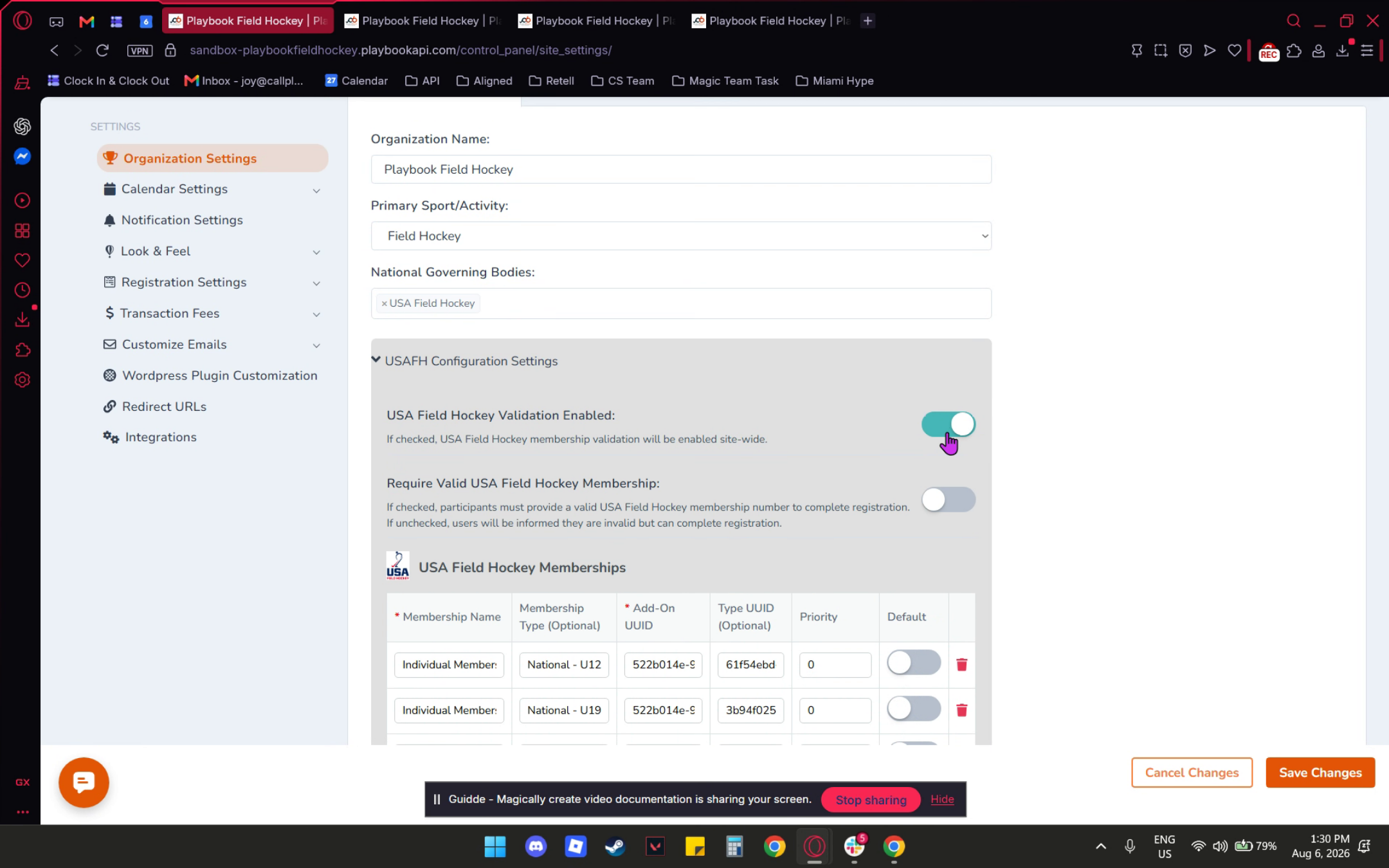
The second option is to require a valid USA Field Hockey membership. When this setting is enabled, participants must possess a valid USA Field Hockey membership to complete their registration.
5. Setting Default Membership Type
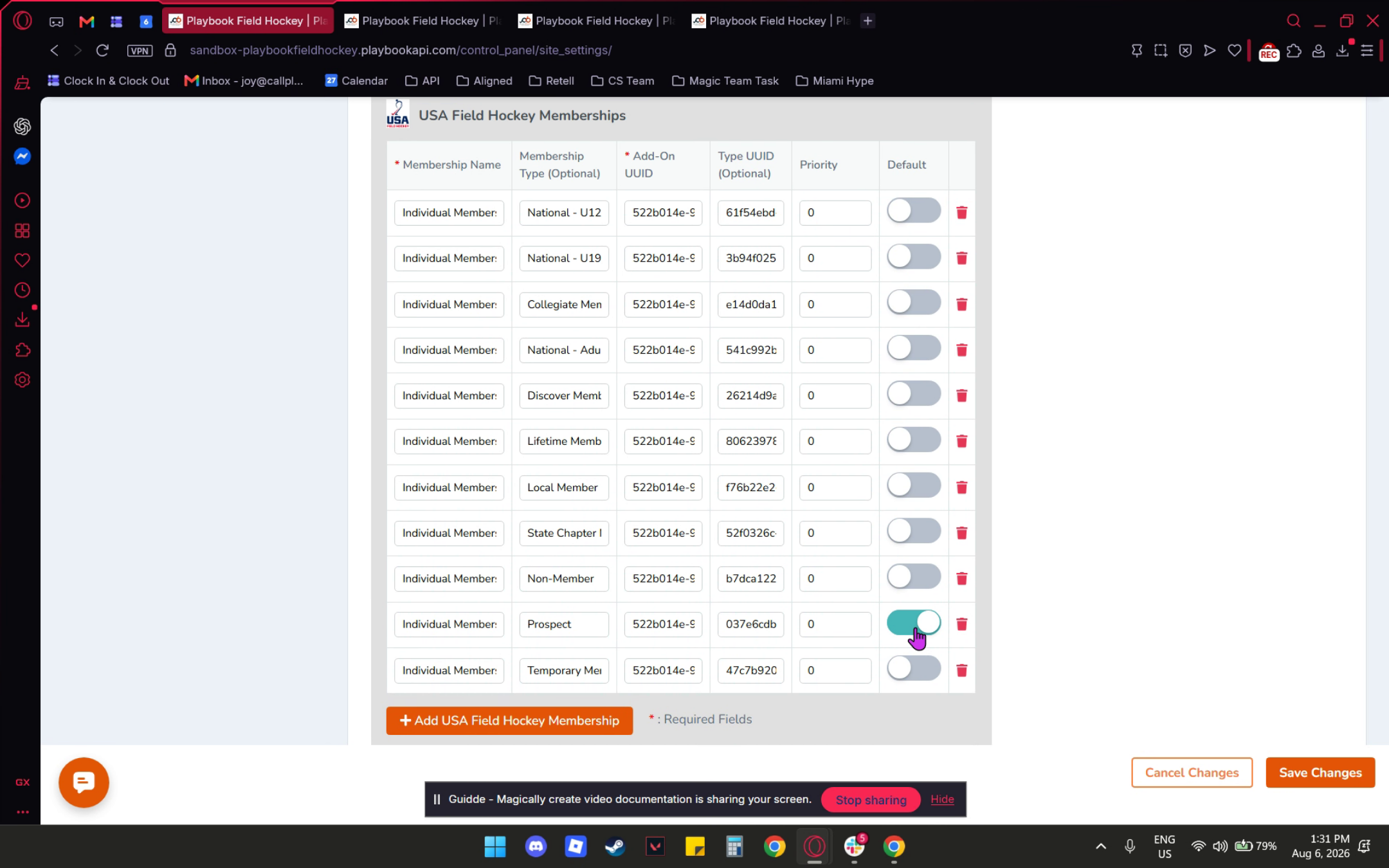
You will find various membership options for the USA Field Hockey membership. Please note the default button. For instance, if we activate the prospect membership, it will become the default option for your USA Field Hockey membership.
6. Saving Membership Settings
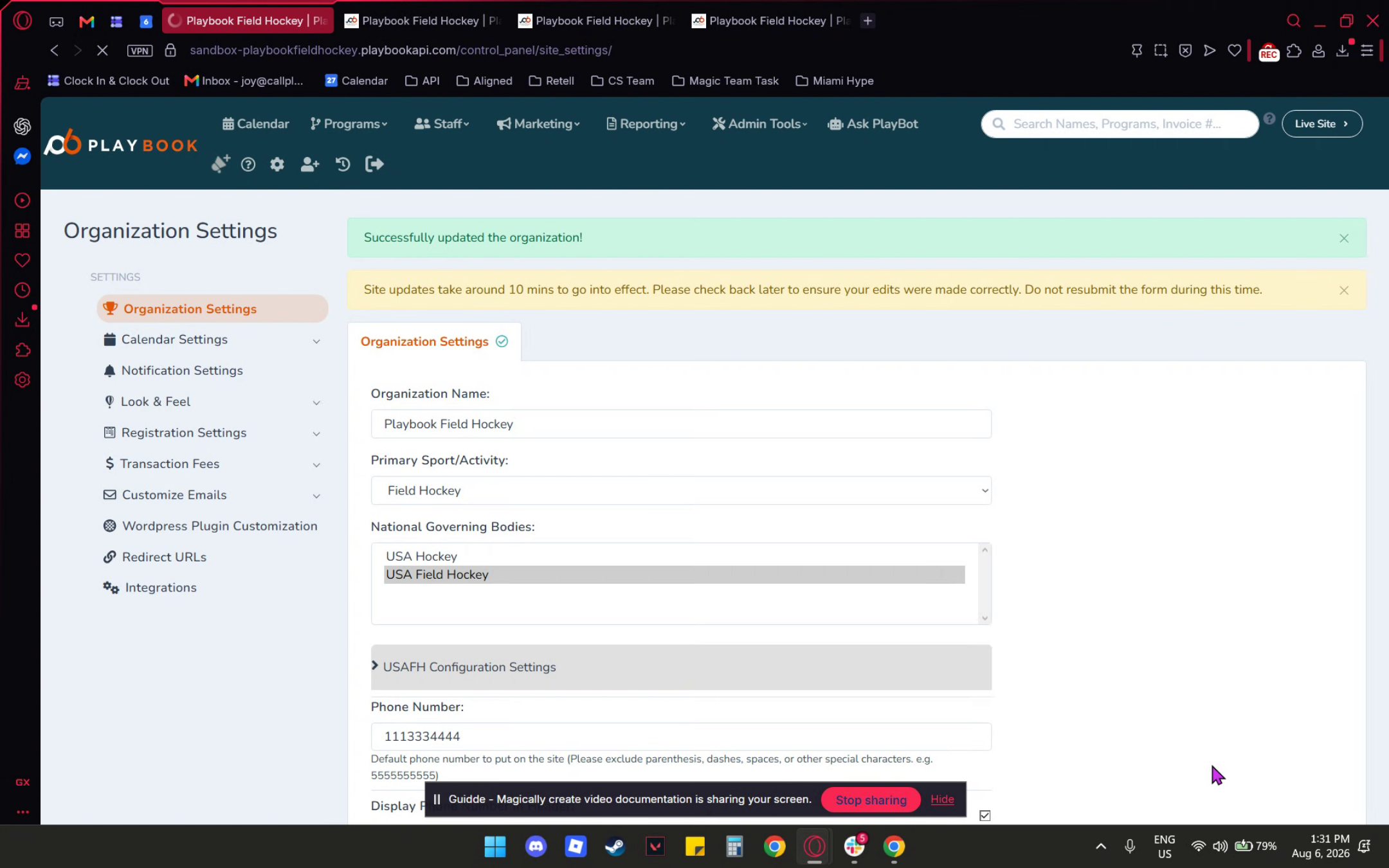
Please note that these settings will only apply to newly created programs and will not affect existing ones. For existing programs, you will need to add them manually. Once you’re finished, click Save Changes.
7. Editing Program Packages
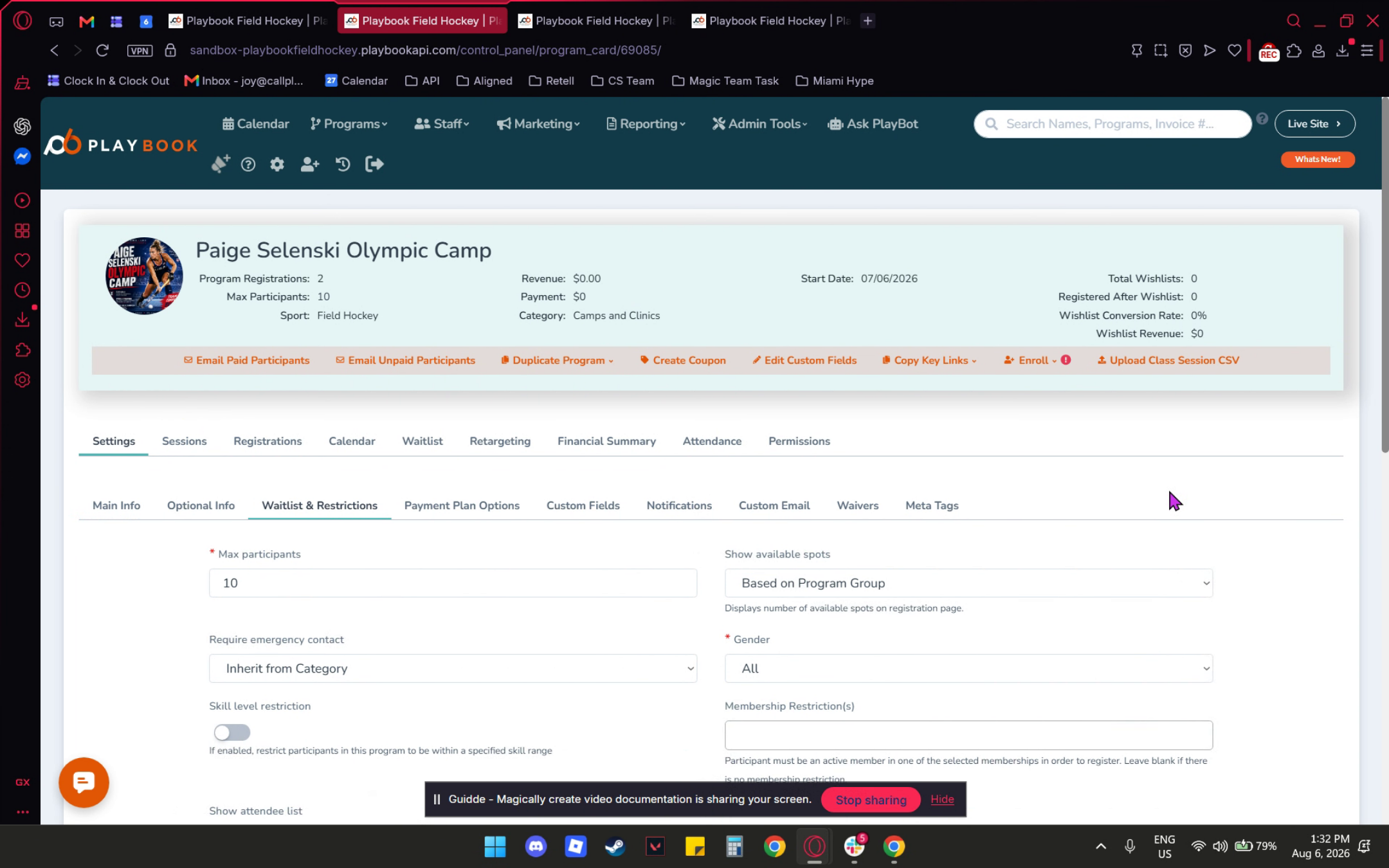
In the next step, I will provide you with an example. If you wish to edit or add it to your program, navigate to your program packages, select the desired program, and click on the view program card. Once you are on your selected program, you can access your waitlist and restrictions.
8. Configuring Membership In Program
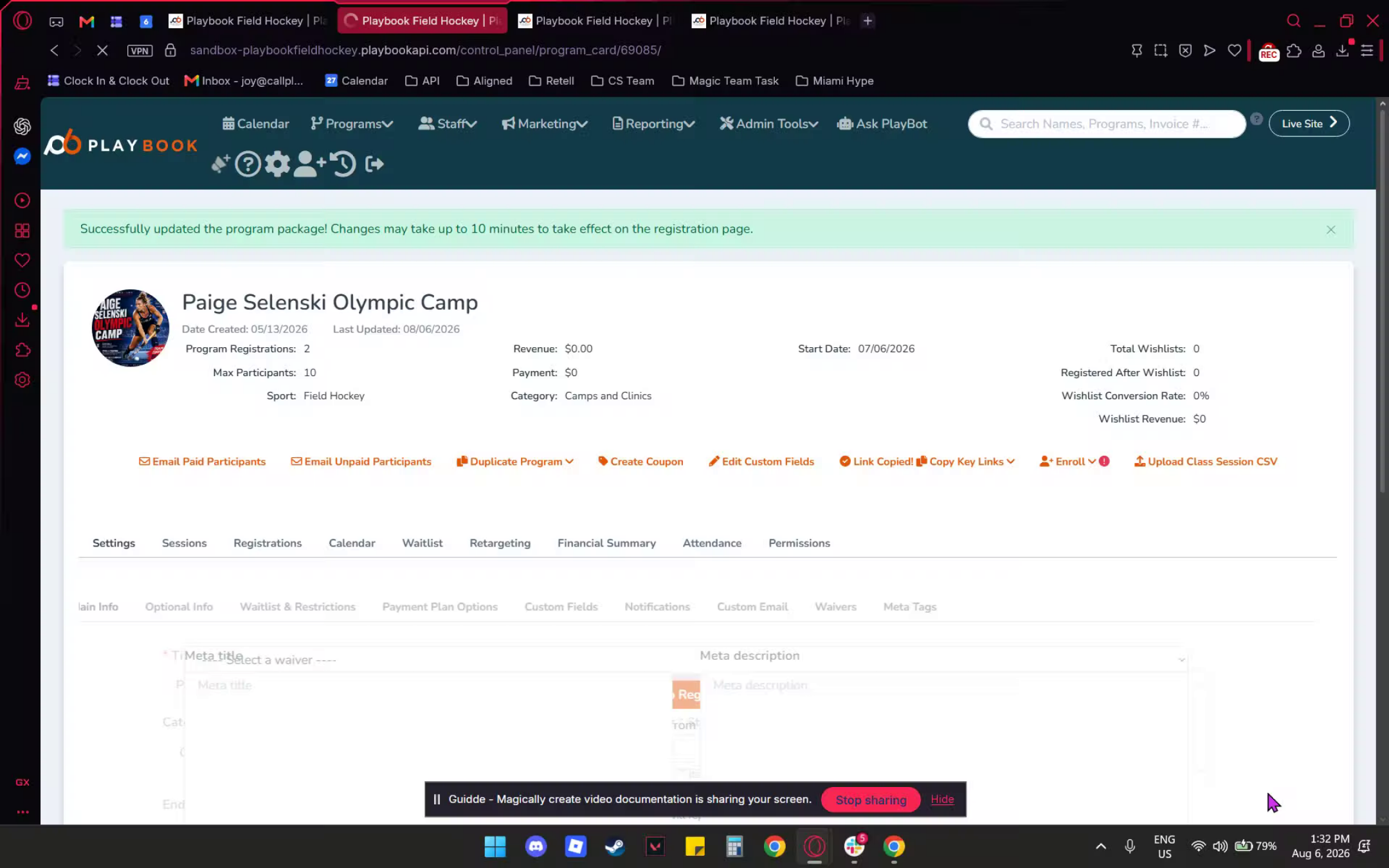
In the bottom right corner of your waitlist restriction, you will find your USA Field Hockey membership setup. For instance, if you select national adult member, national U12 member, or U19 member, once you have made your choice, click add and select. Finally, remember to click save.
9. Registration Process Overview
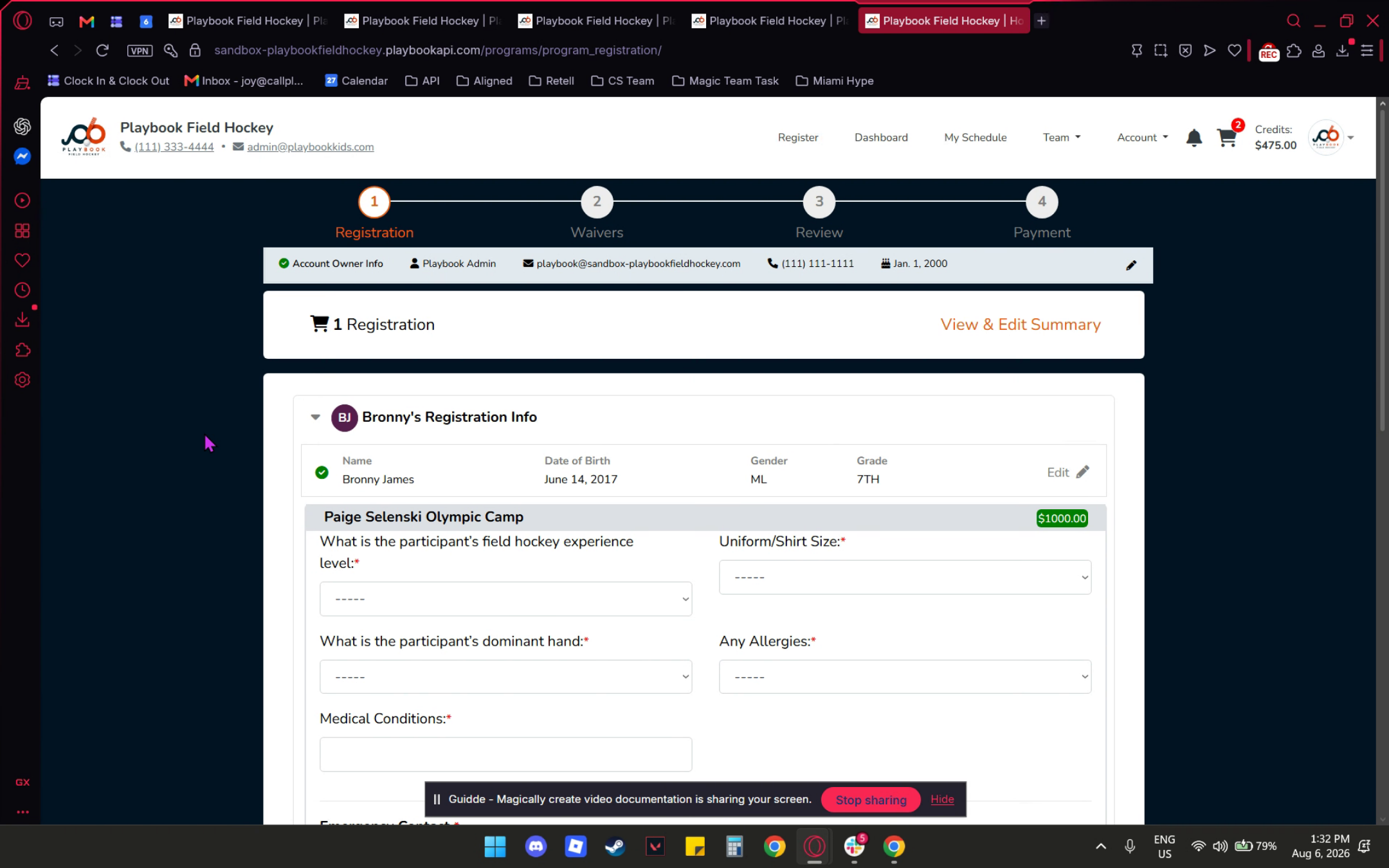
Once saved, it will automatically integrate into your registration process. Allow me to present a sample for your registration process.
10. Membership Verification Display
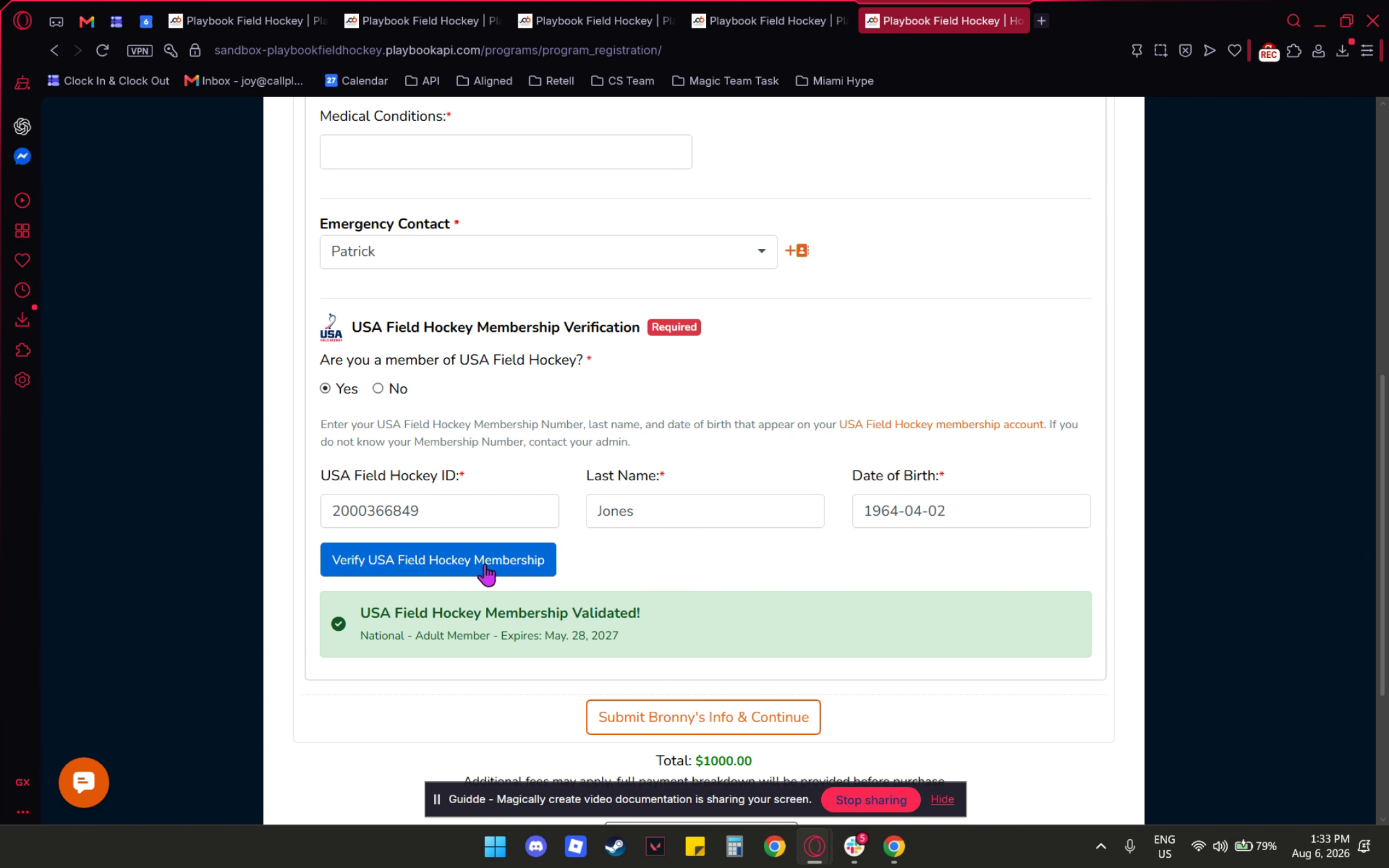
On the registration page, you will notice that your USA Field Hockey membership verification is displayed. This is mandatory as we have enabled this feature.
11. Participant Membership Confirmation
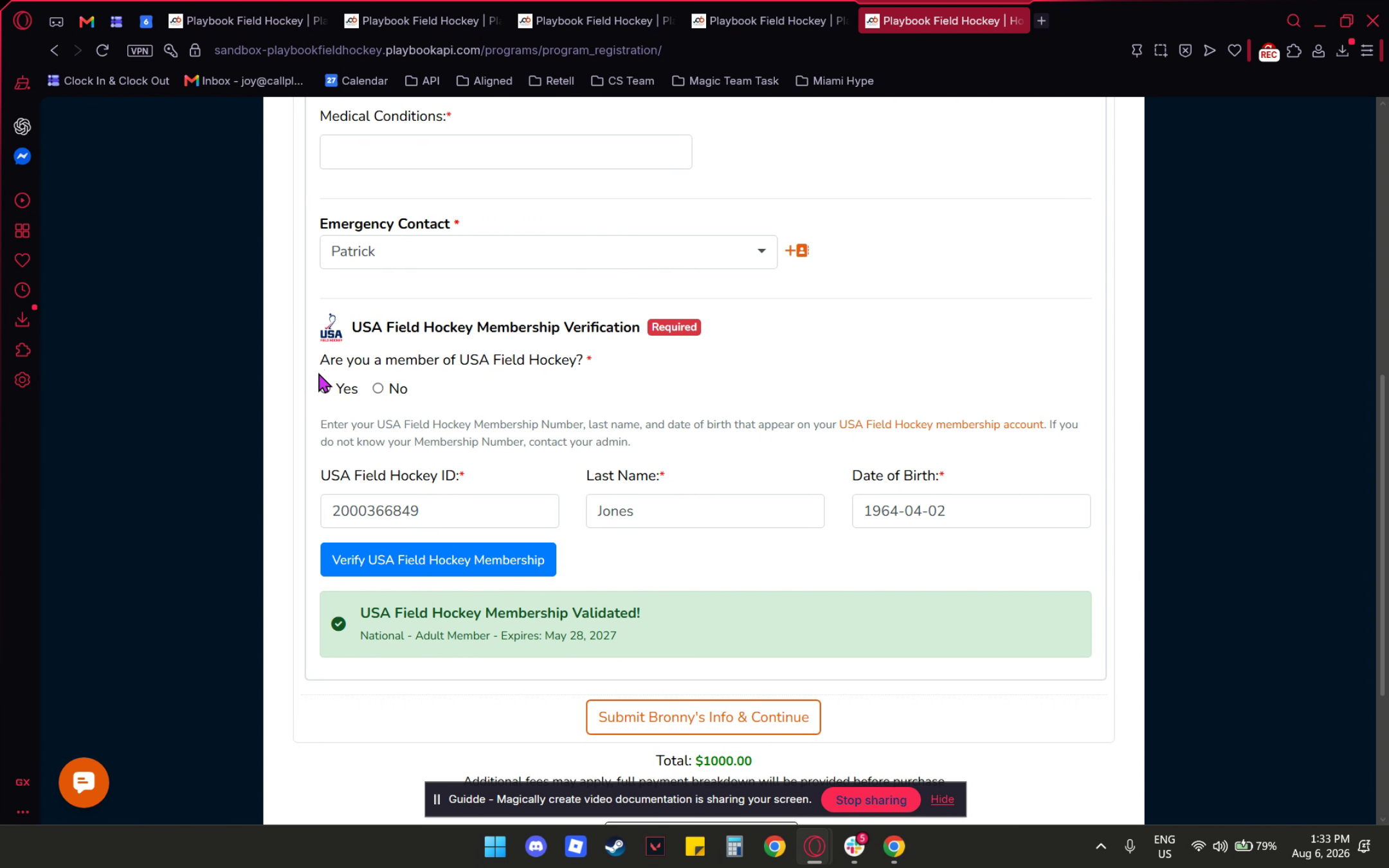
If the participant selects "yes," they are required to provide all their USA Field Hockey information, including the USA Field Hockey ID, last name, and date of birth.
12. Handling Incorrect Membership Data
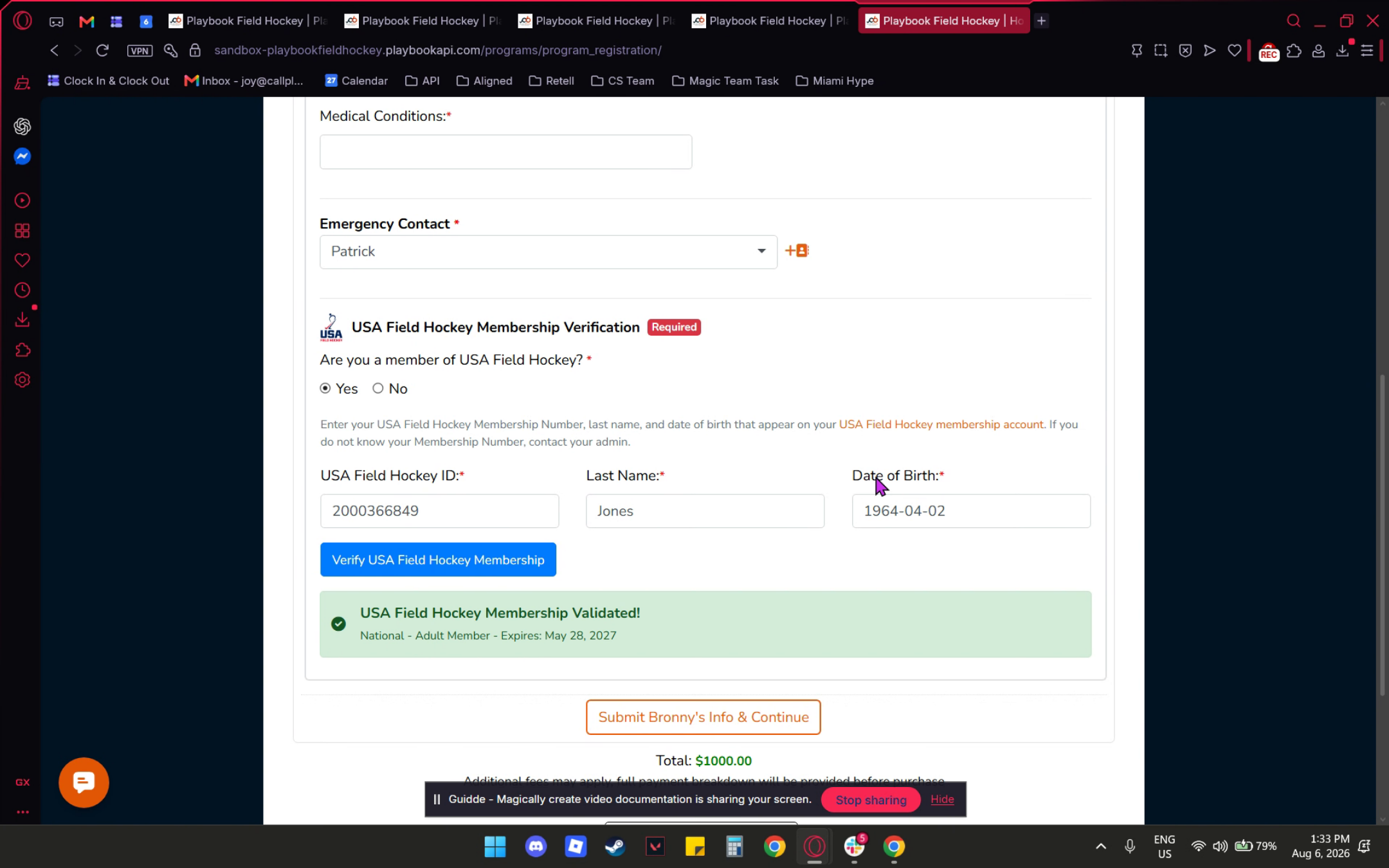
If any of the information entered is incorrect, an error message will appear indicating that the USA Field Hockey membership could not be found. To verify the membership, the participant must enter the correct information and successfully validate their membership before proceeding with registration. Once the correct information has been submitted, the participant will receive a confirmation message indicating that their USA Field Hockey membership has been successfully validated.
13. Validated Membership Confirmation
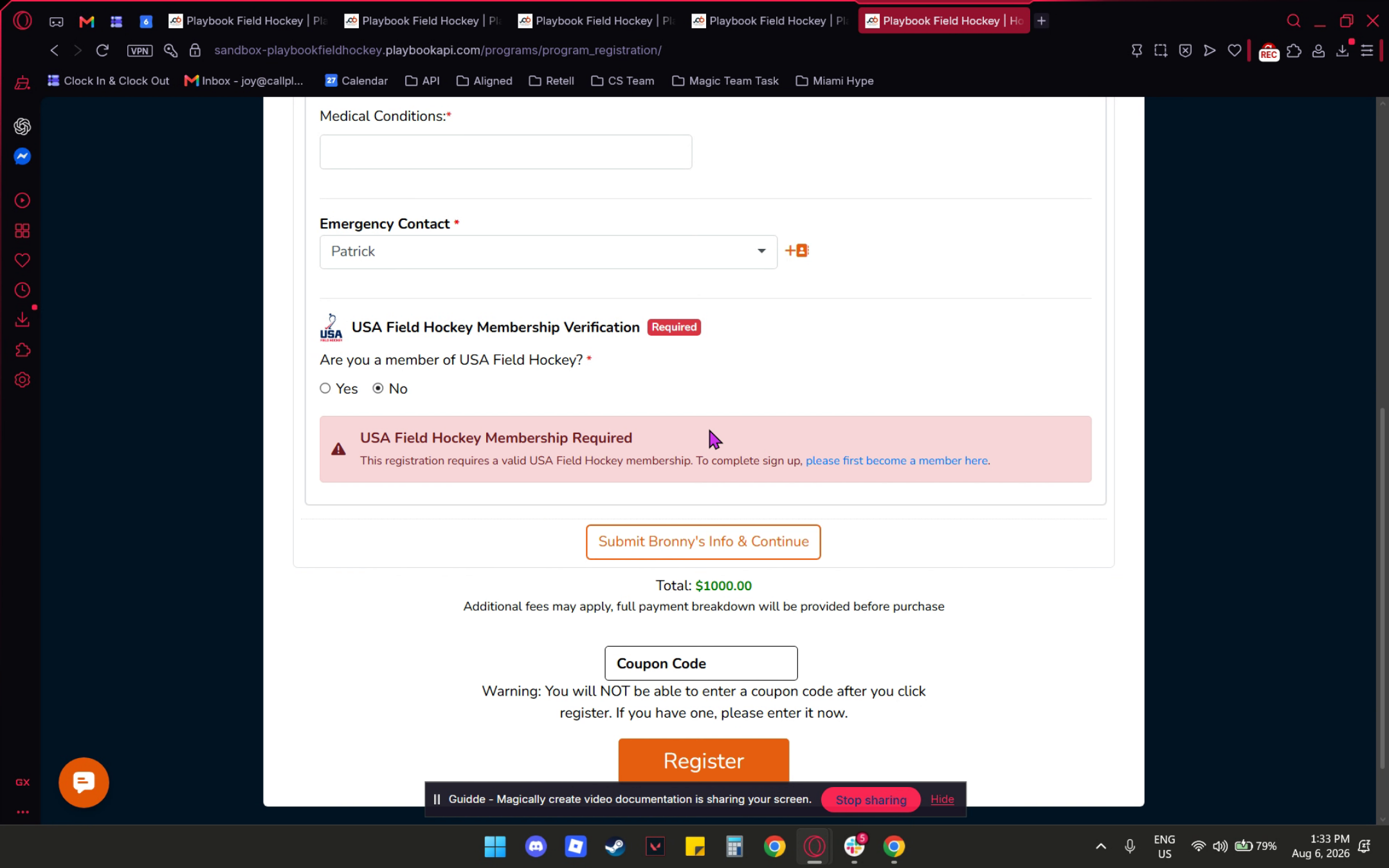
If the participant selects No, they will receive an error message indicating that a valid USA Field Hockey membership is required.
14. Error Message For Missing Membership
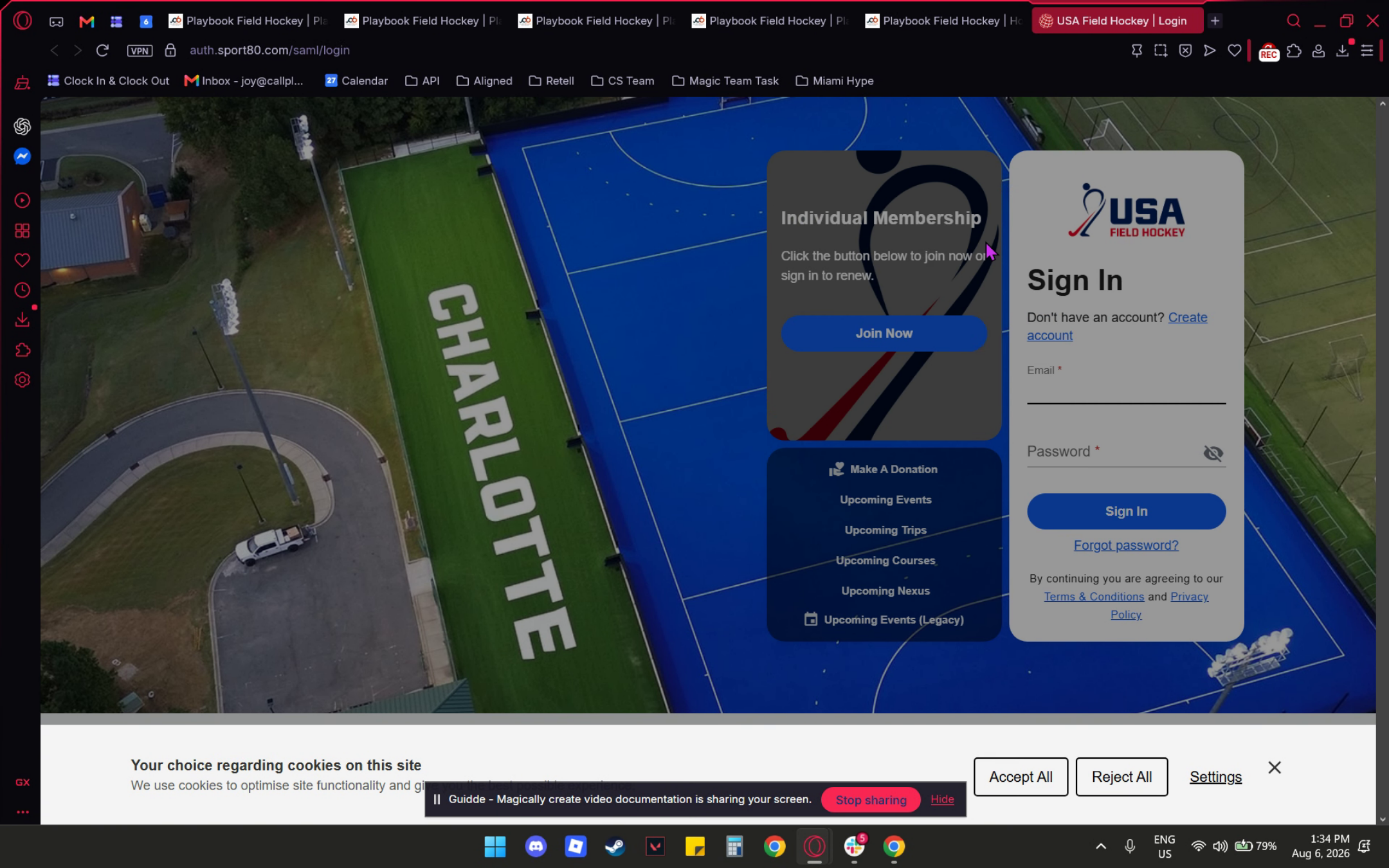
The system will automatically display a link to the Sport80 registration website, where participants can register for a USA Field Hockey membership. After completing their membership registration through Sport:80, they can return to the program and continue the registration process.
15. Proceeding After Membership Validation
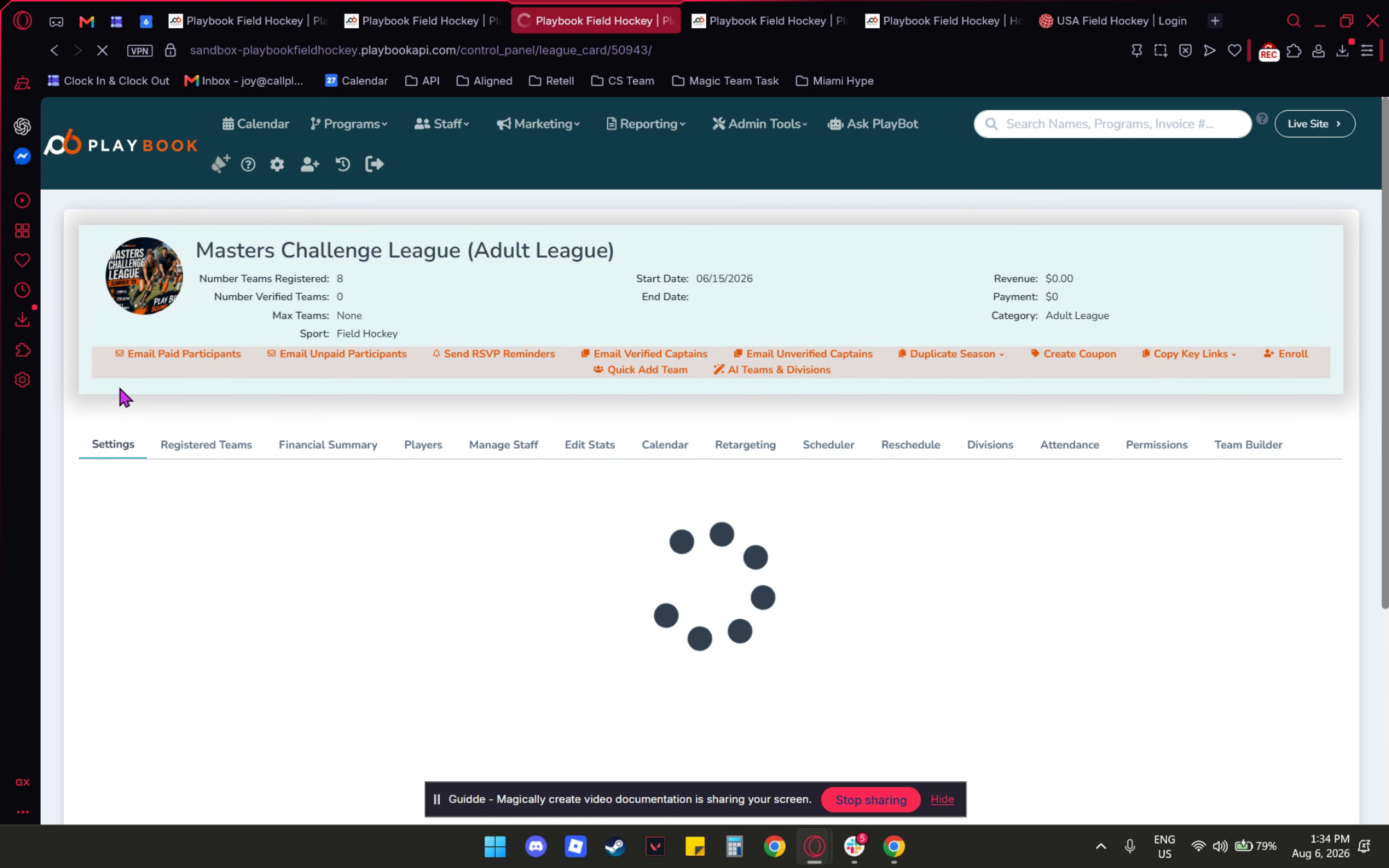
Once completed, users can return to their program and continue with the registration process. For the other program we have for seasons and clubs, let me provide an example. For Seasons, navigate to Seasons, select the season or league you wish to edit, and click on View League Card.
16. Season Membership Setup
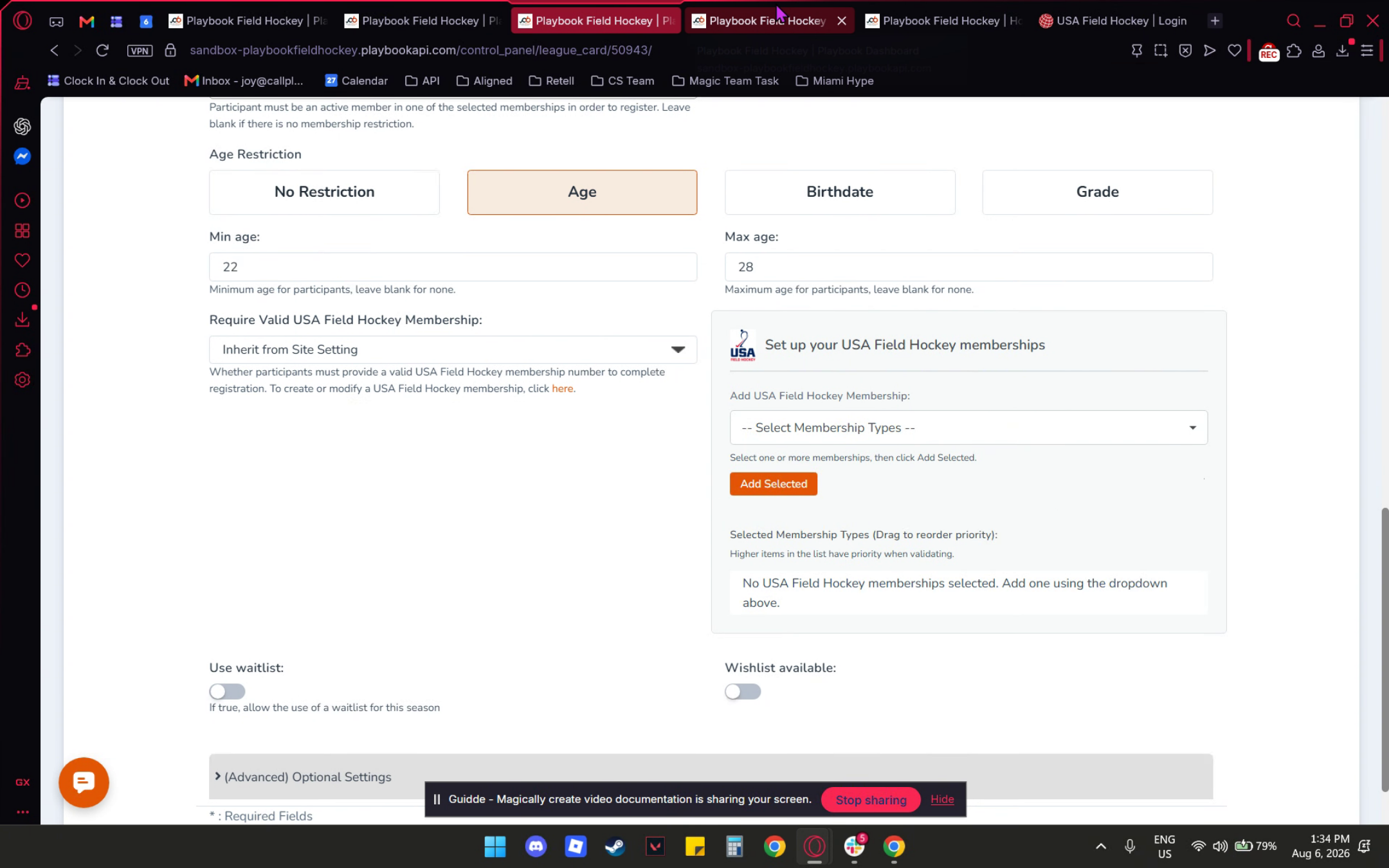
In this section, you need to locate the optional information. Scroll down, and at the bottom right, you will find your USA Field Hockey membership setup, which follows the same process.
17. Accessing Club Settings
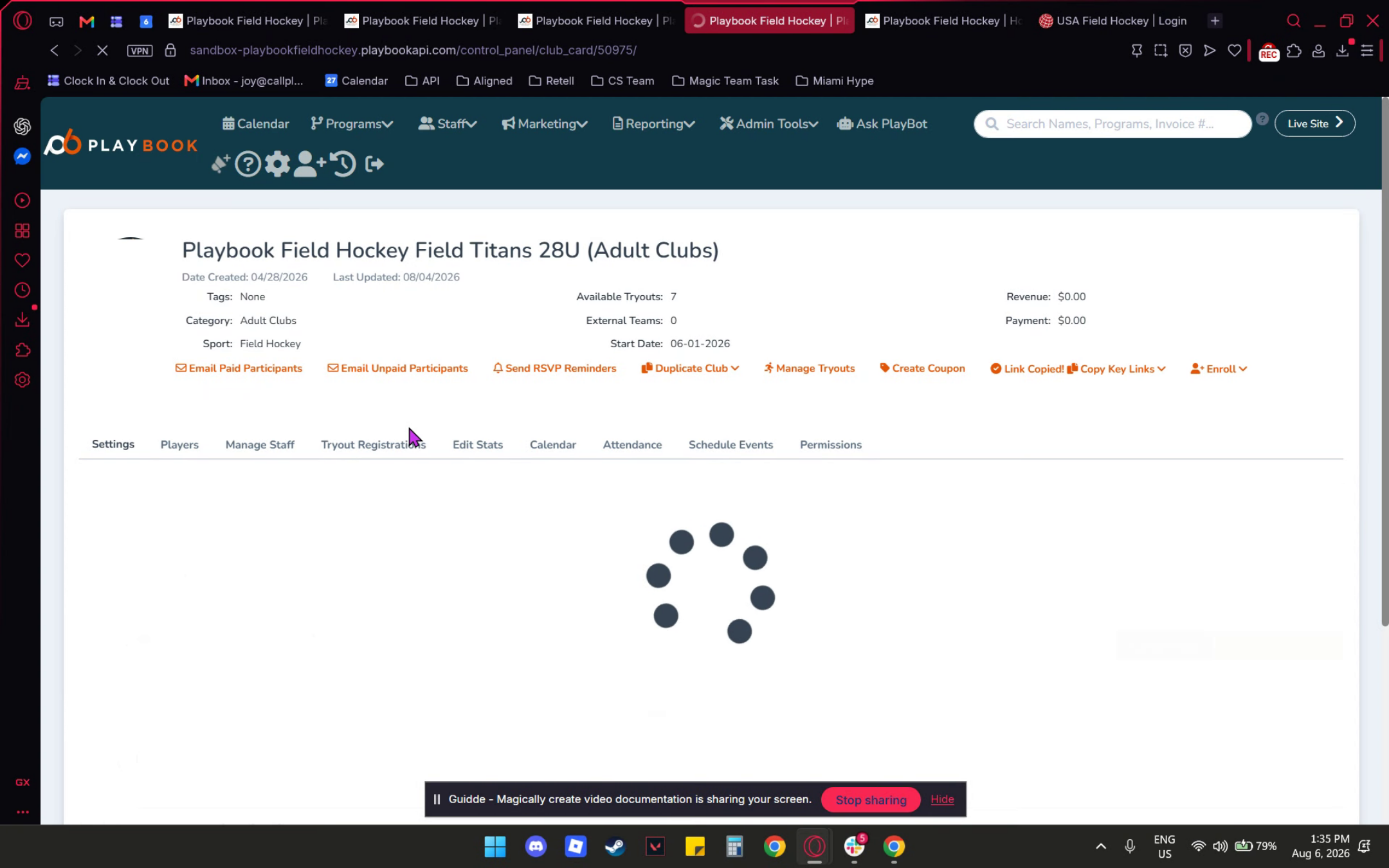
To access your clubs, navigate to the clubs section and click on View Club Card.
18. Club Membership Configuration
Once you enter your chosen club, you can access optional information. Scroll down to find your USA Field Hockey Membership Setup located at the bottom right.
Learn to enable USA Field Hockey membership validation, configure default membership types, and integrate membership checks into program registrations effectively.